

Tools for managers

Give managers the training tools they keep asking for

Managers assign training to their own team with a due date and a note, see who is on track by person and by course, chase what is overdue, approve requests, and download their team’s progress. Assigning and team reports are on every plan.
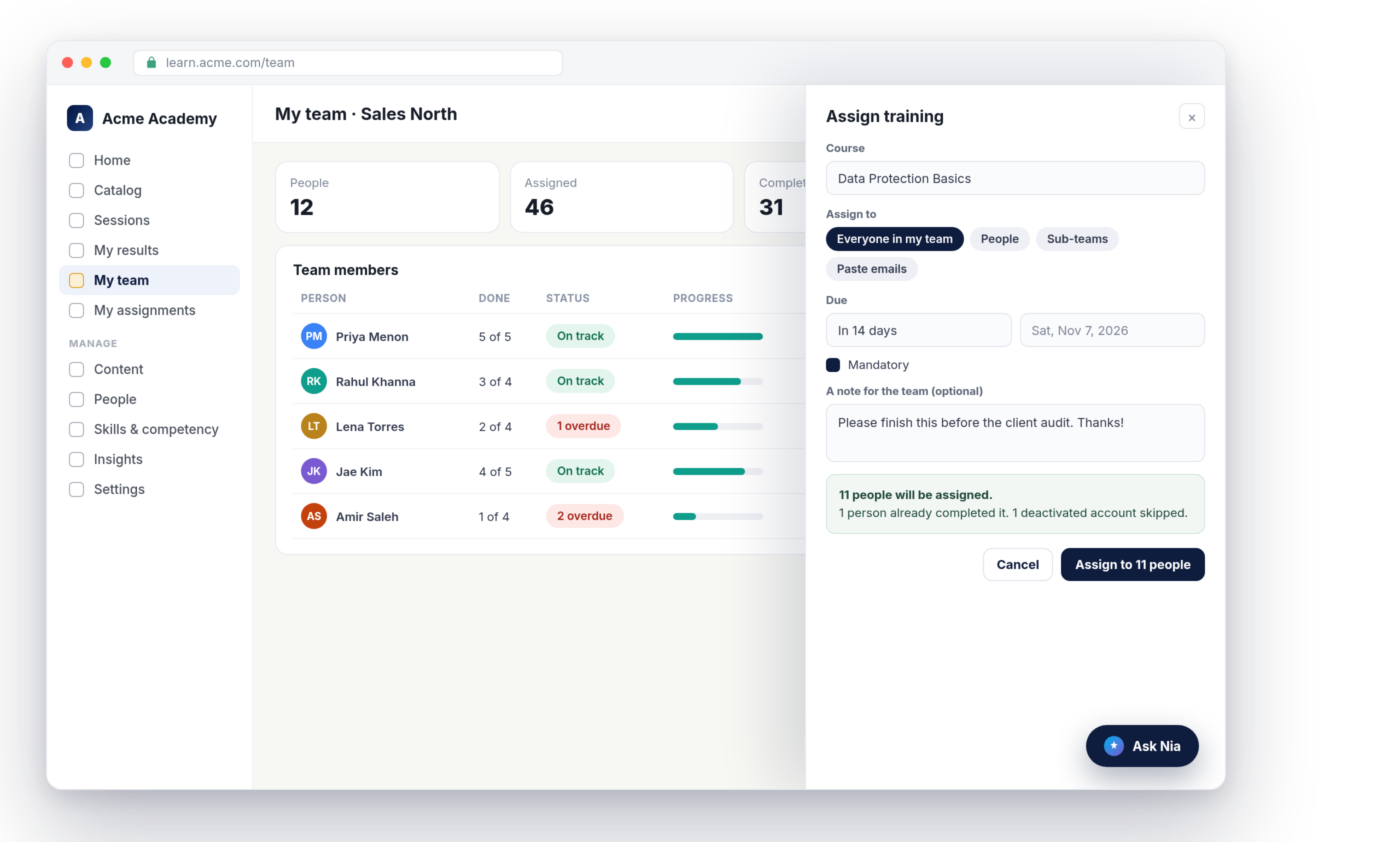
Nialtus My team page with the Assign training dialog
Assign to your team
Due dates and notes
Team progress
Per-course view
Weekly digest
Team CSV

The manager is where training gets done

They know who needs what. Now they can act on it without filing a request.

Assign without a ticket

A manager picks a course, picks people or the whole team, sets a due date and adds a note. Nialtus shows exactly who will be assigned before anything is sent.

See the team at a glance

My team shows each person’s progress and anything overdue, with a view per person and a view per course. Department heads also see each sub-team.

Nudges that go up the chain

Learners get reminders before work is due. Work left overdue escalates to the nearest manager, and managers get a weekly digest of what needs attention.

Assigning, with a preview before anything is sent

Choose a course, then individuals, sub-teams, pasted emails, or everyone in your team. Set the due date as a number of days or a date, tick Mandatory if it should count for compliance, and add a short note that goes into the email. The preview says who will be assigned and who is skipped, such as people who already finished or deactivated accounts.

  • Only people in the manager’s own team
  • Optional note in the assignment email
  • Recertification offered where a certificate expires
Assign training
Data Protection Basics
Everyone in my team, due in 14 days
11 people will be assigned. 1 already completed it. 1 deactivated account skipped.
Every assignment is recorded in the audit log
Data Protection Basics
3 overdue
Completed
7 of 11
AS
Amir Saleh
Due Oct 20, 25% done
Remind
LT
Lena Torres
Due Oct 22, 50% done
Remind

Team progress by person and by course

My team lists every member with what they have done and what is overdue. Open a person to see their courses with due dates, scores and who assigned them. Open a course to see every team member, enrolled or not, with a Remind button for anyone overdue. Download the team as a CSV on any plan.

  • Person view and course view
  • Remind overdue people in one click
  • Team CSV on every plan

My assignments, for anyone who assigns

Authors, admins and managers get a My assignments page listing everything they have assigned, with progress, due dates, completion dates and scores. Filter by person, course, status or date, remind everyone who is overdue, and export the list. People administrators can switch to see every assignment in their reach.

  • Everything you assigned, in one list
  • Filters by status, course and dates
  • Remind overdue and export to CSV
My assignments
21 assigned
Workplace Safety Essentials
Assigned Oct 2 · 12 of 14 done
86%
Data Protection Basics
Assigned Oct 23 · due Nov 7
18%
Onboarding path
Assigned Sep 15 · 2 overdue
Remind

Everything a manager can do

Scoped to their own reporting line, and switched on by default.

Assign training
Courses to people, sub-teams or the whole team, with due dates and a note.
Team dashboard
Progress and overdue work for every person and every course.
My assignments
One list of everything you assigned, with filters and reminders.
Approvals
Requests to join a course land with the people who can approve them, by email and in the bell.
Weekly digest
Overdue, due this week, completed and approvals waiting, every Monday by default.
Team CSV
Person, course, status, progress, due date, score and assigner, on every plan.

Nialtus is built and run by Learning Everest, a training company that has run enterprise training programs for years. Managers decide whether training happens, so Nialtus gives them the controls.

Questions we hear a lot

Straight answers about what managers can do in Nialtus.

Want to see the manager view?

Book a demo and we will assign a course to a team as a manager and show what each person sees.

Book a demo

Yes. Manager assigning is on every plan and switched on by default. An administrator can turn it off, or limit managers to certain course categories.
No. Managers reach only the people in their own team and the teams below it. Anyone else is left out of the assignment and counted as outside the team.
No. Assigning never creates an account. Pasted emails that have no account are listed back, and nobody is invited.
Learners get a reminder before an assignment is due, three days and one day before by default. After seven days overdue, the nearest manager up the chain gets one email listing the overdue items. A second level is optional.
Yes. When a learner asks to join a course that needs approval, the people who can approve it get an email and a notification, and the learner hears the decision.
Yes, on plans with certifications (Launch and above). Line managers can review external certificates uploaded by their own team, alongside compliance admins. Nobody can approve their own upload.

Put training in the manager’s hands

Book a demo and we will run a manager’s week: assign, track, remind and approve.