

Assignments

Ask for real work, and actually grade it

Set a brief, let learners hand in a written answer, files, or both, and grade the work with a score out of your total and written feedback. The kind of practical work a quiz cannot capture.
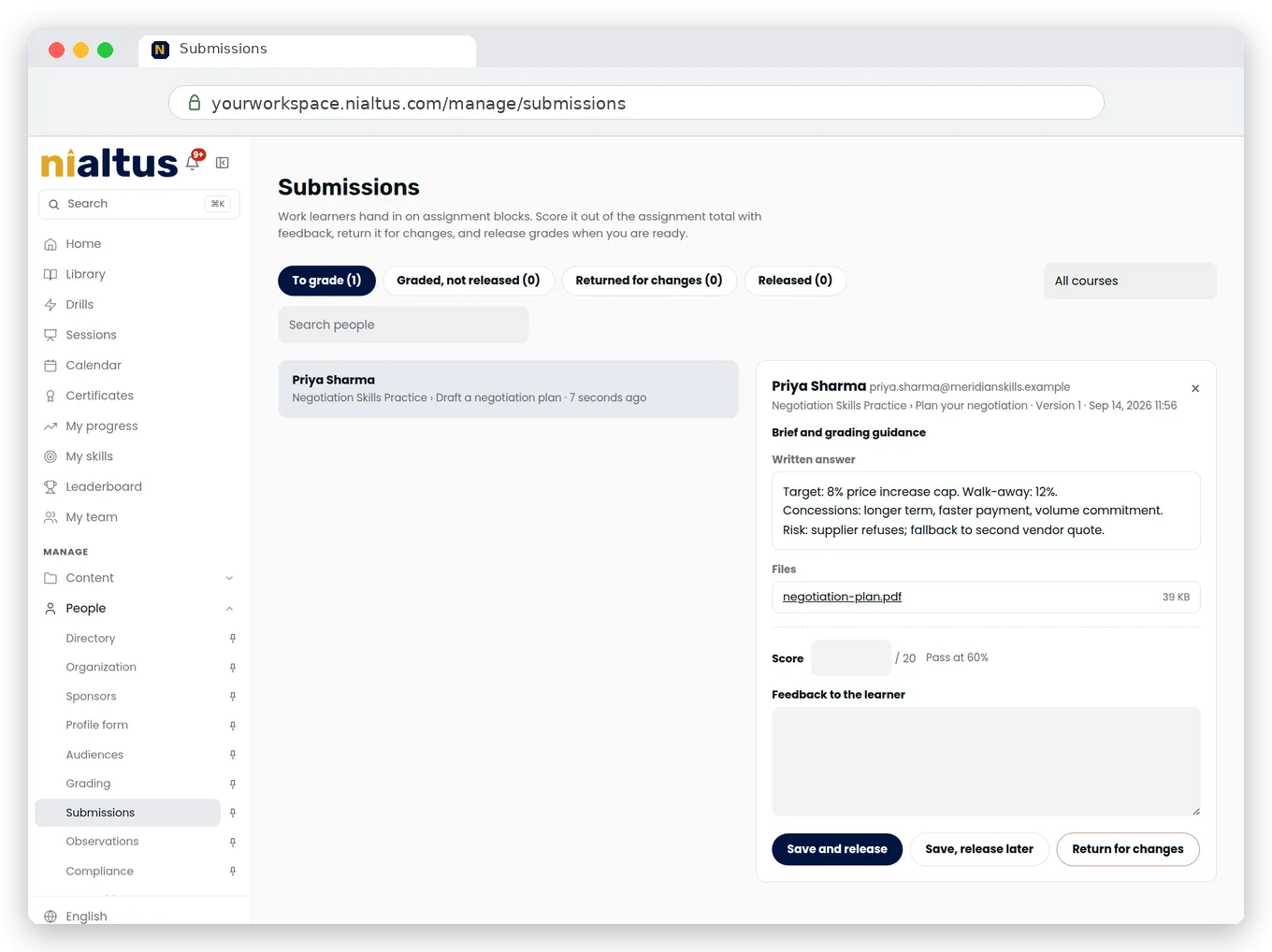
Nialtus assignment submissions review
Written answers and files
A clear brief
Score out of your total
Written feedback
Release when ready
Named graders

Three ways real work gets graded properly

Practical work that a quiz cannot capture, handed in and graded inside the course.

Real work, handed in properly

Ask for a written answer, files, or both. Each hand-in arrives in People > Submissions with its files and any earlier versions, and work that comes in after the due date is marked late.

Graded by a person, with AI help if you want it

A grader scores each hand-in out of your total and writes feedback. With AI grading switched on, Suggest with AI drafts a score and feedback from the written answer. It does not read attached files, and the grader decides.

You decide when it is released

Release grades one at a time or in bulk, or set the assignment to release each grade as soon as it is graded. Learners are notified when a grade is released.

Learners hand in real work

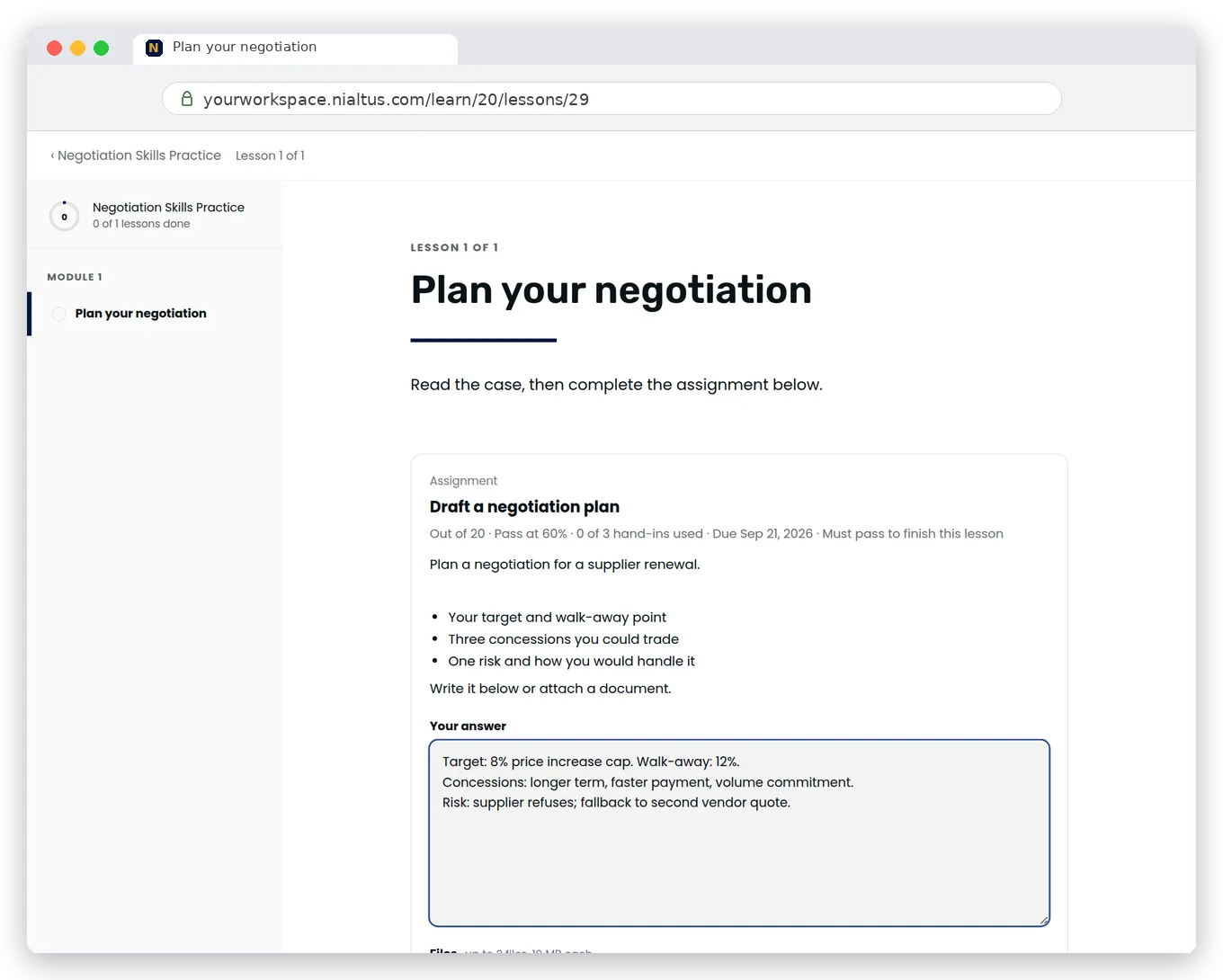
Learners read your brief, write an answer that saves as a draft while they work, and attach files. When they hand in, that version is locked and they see that it is waiting for a grade. Due dates are set in days after each person enrolls, and late work is still accepted and marked late.
  • Accept a written answer, file uploads, or both
  • Files open only for the learner and their graders, through links that expire after a few minutes
  • One automatic reminder when work is due within two days and nothing is handed in
Nialtus assignment from the learner view
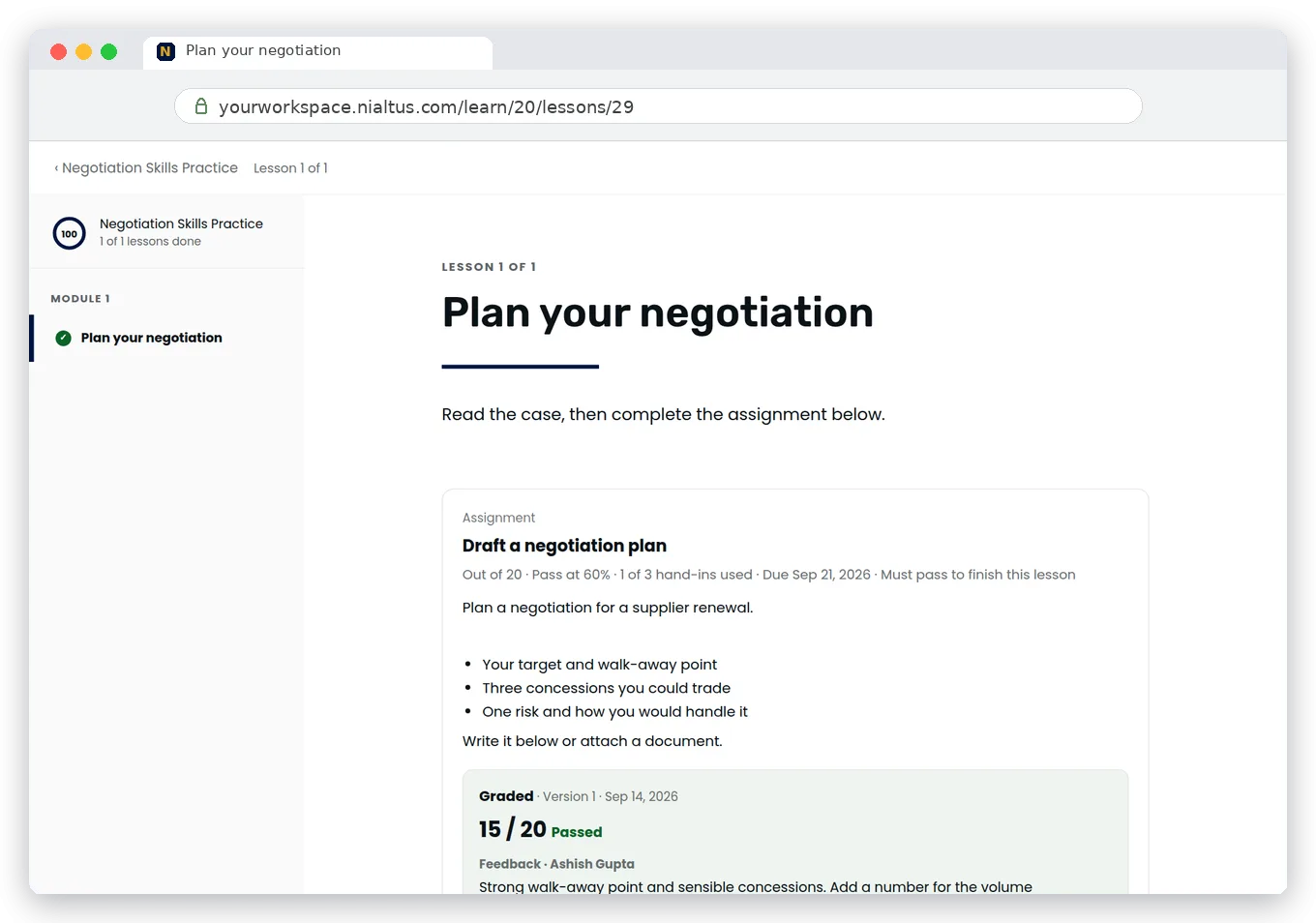
Nialtus graded assignment with feedback

A score, feedback, then release

Graders work in People > Submissions. Open a hand-in to see the brief, your grading guidance, the written answer, the files and any earlier versions. Enter a score up to the total with feedback, then save and release, save and release later, or return the work for changes with a note. Once a grade is released, the learner sees the score, whether they passed, and the feedback.

  • Score up to your total, with a pass mark
  • Return for changes, and the learner starts a new version from their last one
  • Release one grade, or release all graded work in bulk

Everything an assignment needs

An Assignment is a block in the course builder. These are the settings and tools that come with it.
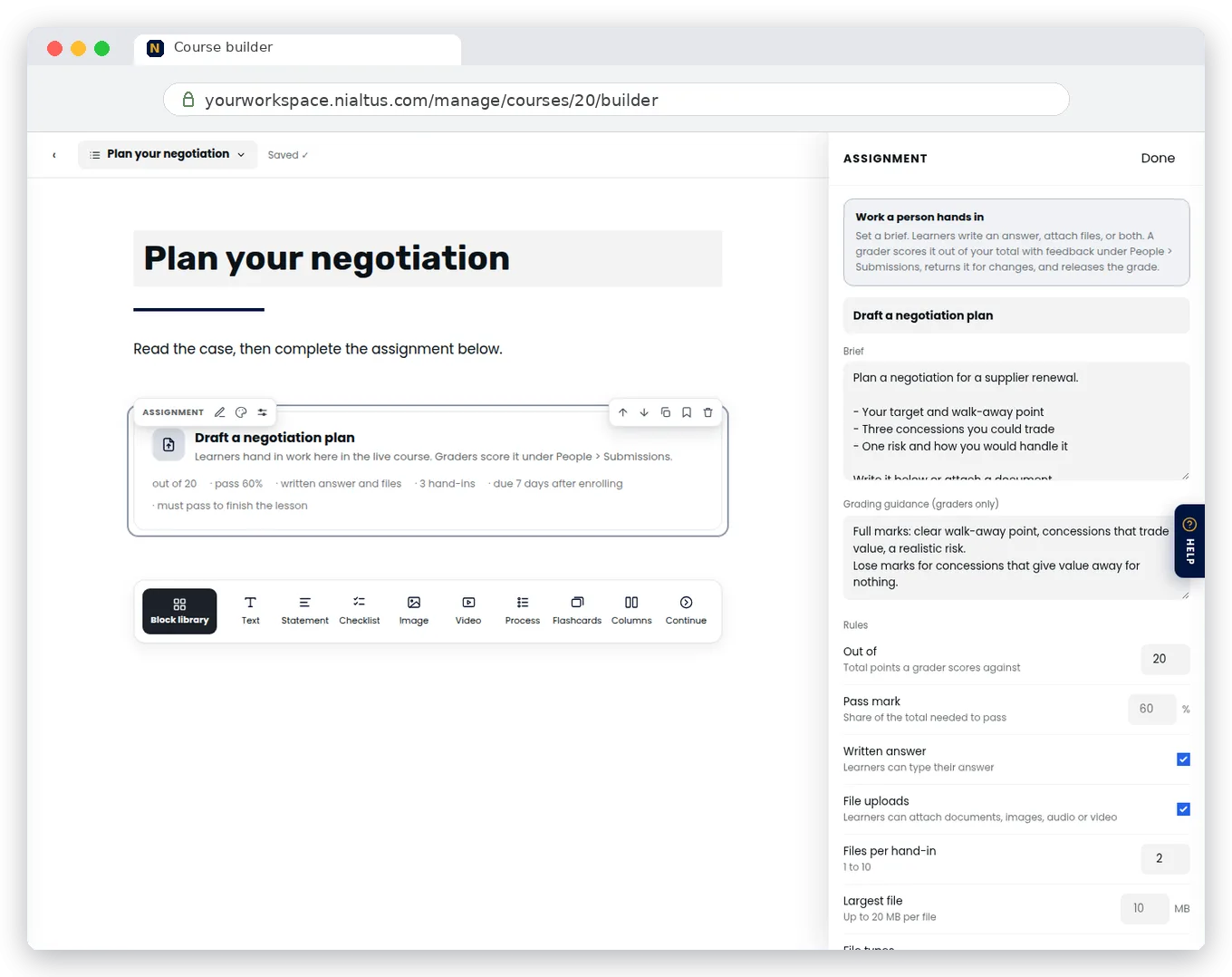
Nialtus assignment editor
File uploads
Up to 10 files per hand-in, each up to 20 MB, in the file types you allow.
Written answers
Learners type their answer in the lesson, and the draft saves as they go.
A clear brief
A brief learners see, plus grading guidance that only graders see.
Score and pass mark
Set the total and a pass mark, and choose whether a pass is needed to finish the lesson.
Release control
Release when a grader chooses, or as soon as work is graded.
Named graders
Anyone with the grading permission can grade, or name specific graders on the block.
Return for changes
Send work back with a note. The learner starts a new version from their last one.
Due dates
Due a set number of days after each person enrolls. Late work is accepted and marked late.
Reports and insights
An Assignment submissions dataset in the report builder, and a count of hand-ins waiting for a grade.

A released passing grade can complete the lesson, which can complete the course and issue its certificate. Passing also earns points, and each pass or fail is recorded as an activity statement and sent to webhooks subscribed to those events.

Questions we hear a lot

Straight answers, so you know what you are getting before you switch it on.

Have a question we missed?

Ask us on a quick call and we will walk you through it in your own setup.

Book a demo

A written answer, file uploads, or both, depending on how the assignment is set up. You choose how many files a hand-in can include (1 to 10), the largest file size (up to 20 MB), and the file types. Leave file types blank to accept common documents, spreadsheets, presentations, images, audio, video and zip files.
Anyone with the grading permission, which the Instructor role has. Delegated admins grade only within their department scope. If you name graders on the assignment, only those graders and people managers see and grade it.
That depends on the assignment setting. Grades are released either when a grader releases them or as soon as the work is graded. Learners are notified when a grade is released, and again if a released grade is updated.
You set the total points and a pass mark, and write grading guidance that only graders see. Each hand-in gets one score and written feedback. There is no multi-criteria rubric scoring.
Yes. A grader can return work for changes with a note, and the learner starts a new version from their last one. If a learner does not pass and has hand-ins left, they can hand in again. You set how many hand-ins are allowed, or leave it unlimited.
No. When AI grading is switched on, Suggest with AI drafts a score and feedback from the brief, your grading guidance and the written answer. It does not read attached files, and the grader decides what to save.
Only the person who handed them in and people allowed to grade that work, through a link that expires after a few minutes. Files count toward your workspace storage.

Set an assignment on your demo

We will hand in an assignment and grade it end to end while you watch.